

/
What can I use the app banner for? Templates and examples
In this section:
You can add a custom message that will appear when employees use specific apps by configuring Push’s app banner feature.
You can use an app banner to:
Block a recently breached app while you investigate.
Block unapproved apps.
Encourage employees to use a preferred app over an alternative.
Remind employees not to enter sensitive information or company data into GenAI tools.
Ask employees not to use an app until it can be reviewed by the security team.
Restrict use of high-sensitivity apps to certain teams or roles.
Or anything else you want!
How does it work?
You can configure app banners from the Controls page by selecting the App banners tile and then configuring a rule for the app banner.
Refer to this related help article on configuring app banner rules.
Note: You can set a banner both for apps in your inventory (meaning that Push has observed employees using them) or for apps not yet seen by Push. When configuring an app banner, use the Accounts column on the app selection slideout to identify apps that do not have any known accounts.
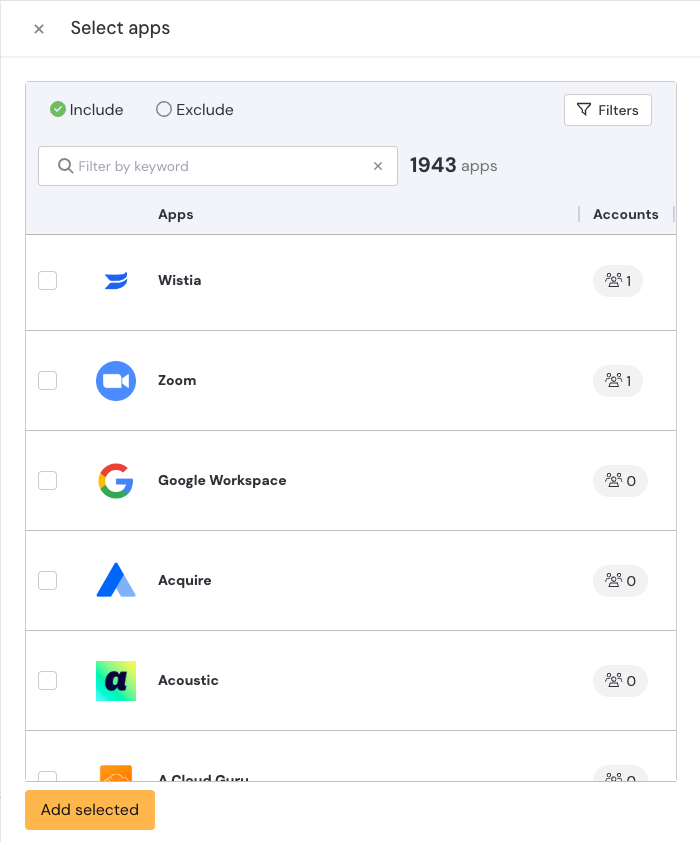
You can create an app banner in the following modes:
Inform: End-users will see a banner message at the top of the page.
Acknowledge: End-users will see a large banner covering the center of the page that requires them to acknowledge the message in order to continue.
Reason: End-users will see a large banner covering the center of the page that requires them to submit a reason for using the app before continuing to use it. Their submitted reason will be emitted as part of a webhook event.
Block: End-users will see a larger banner covering the center of the page that prevents them from logging in or signing up to the app. Optionally, you can allow them to ask for an exception using a request field on the banner. Their request will be emitted as part of a webhook event.
The banner message text and button text is customizable. By default, banners appear on an app's login or signup pages, and end-users must have the Push browser extension installed in order to see the message.
You can also set banners to appear on specific URL patterns. Create a URL pattern rule and specify the URL.
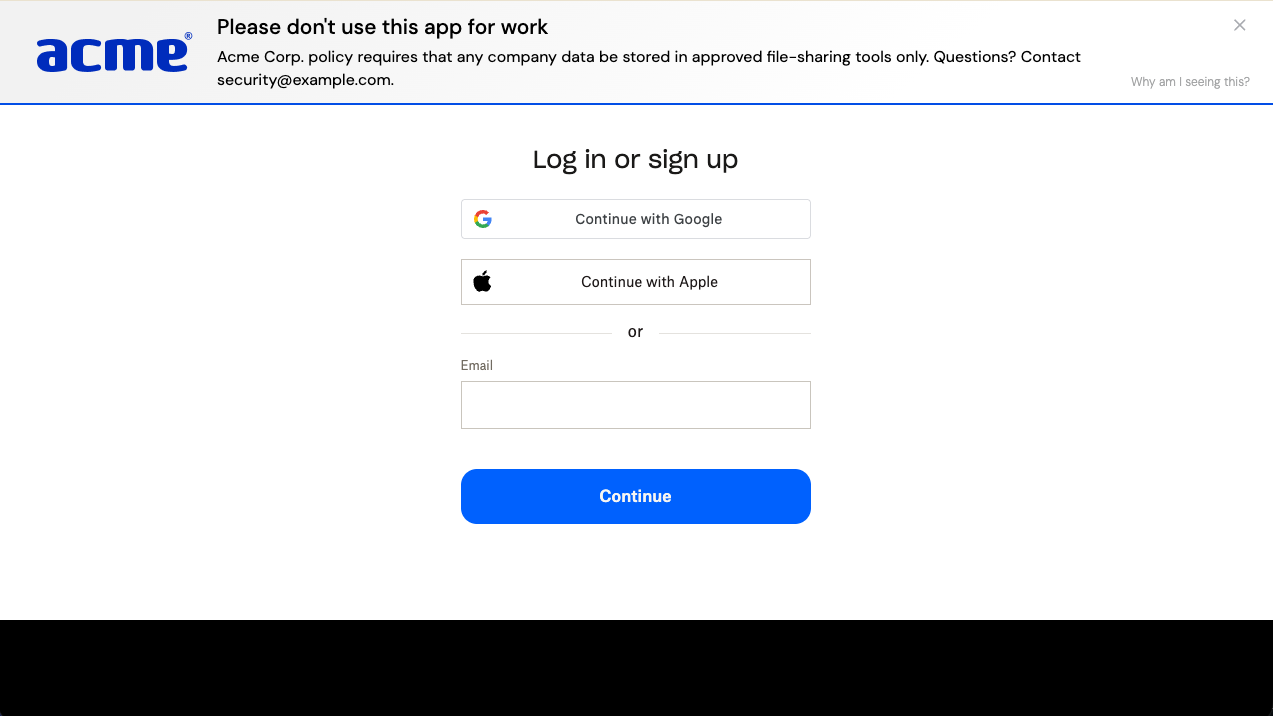
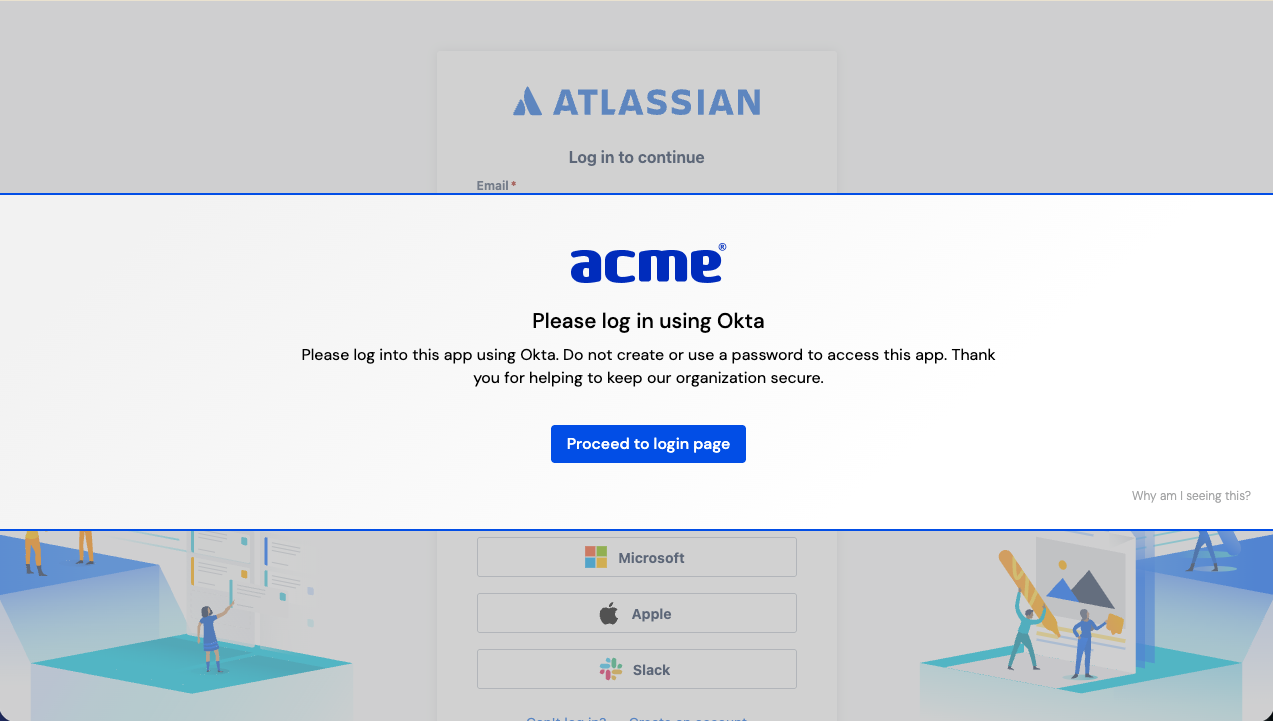
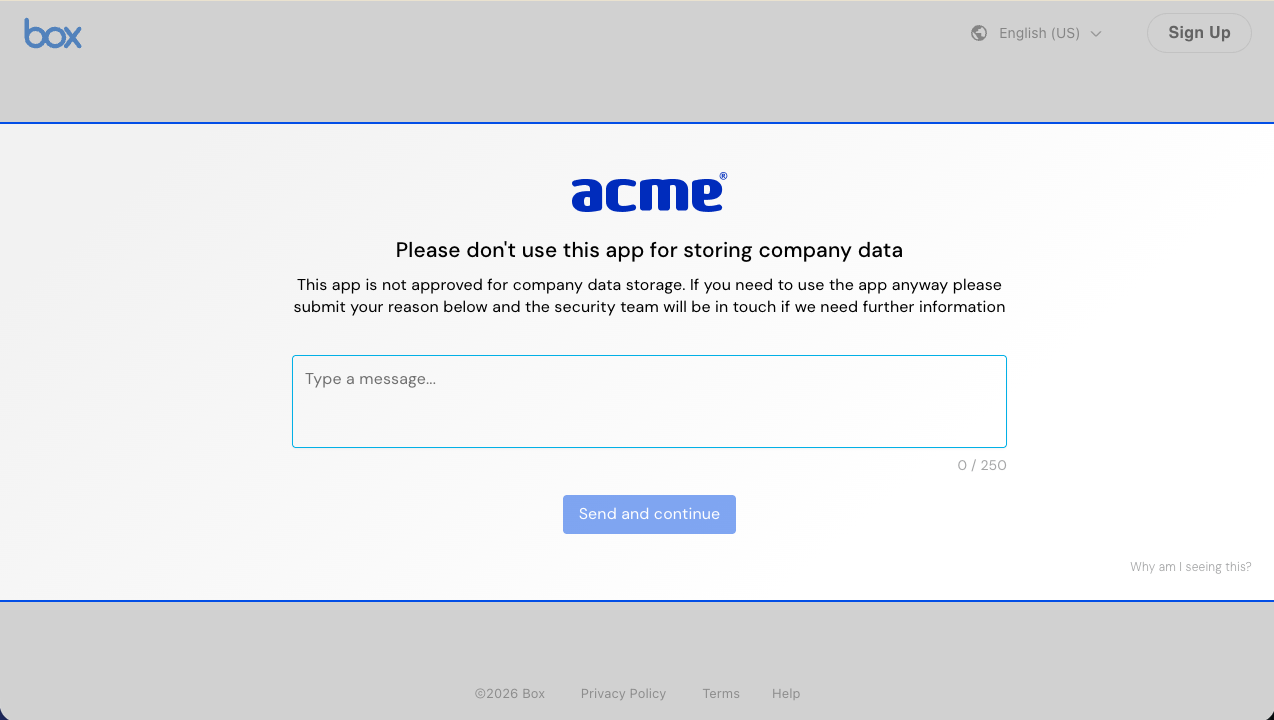
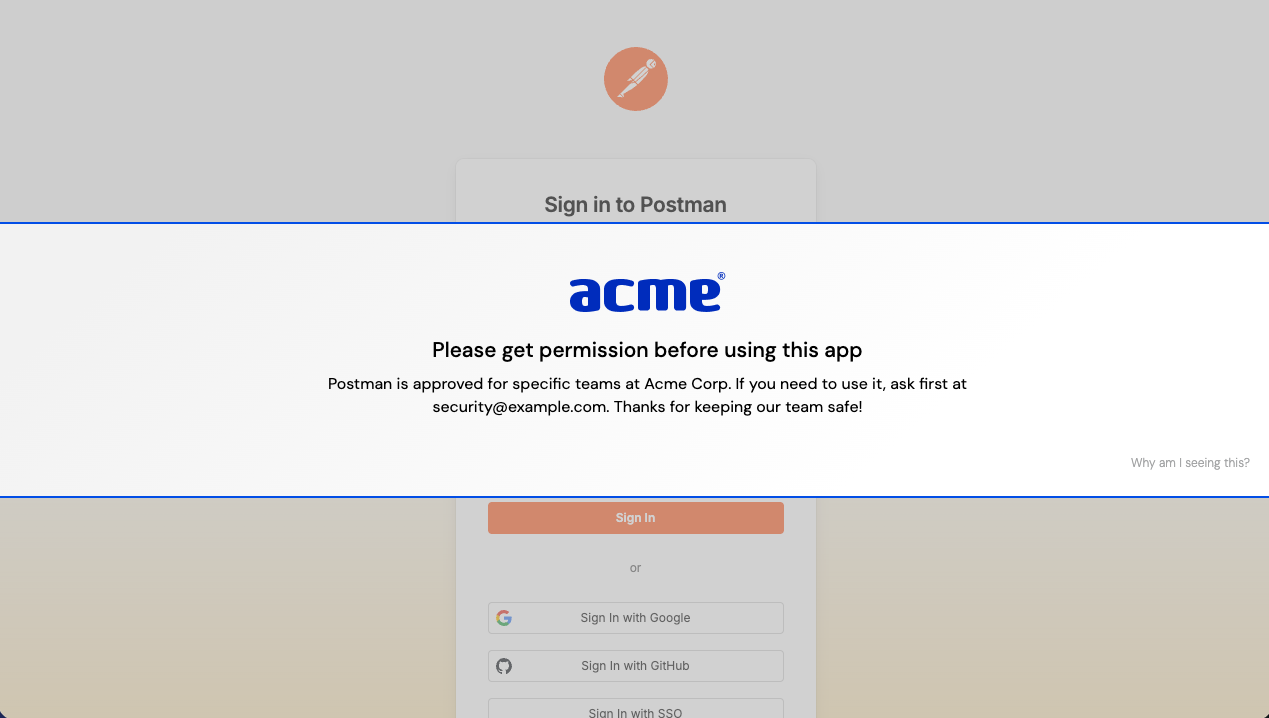
Custom branding
You can apply custom branding, such as uploading your logo and adding accent colors. For more information on custom branding, refer to this related help article.
Markdown for styling custom message
App banners are configured on a per-rule basis, so you can have a custom message for each scenario you've configured a rule for. The text field supports link and email syntax using markdown, but no other formatting.
Example markdown:
[Push Security](https://pushsecurity.com)[Steph](mailto:steph@ctrlaltsecure.com)
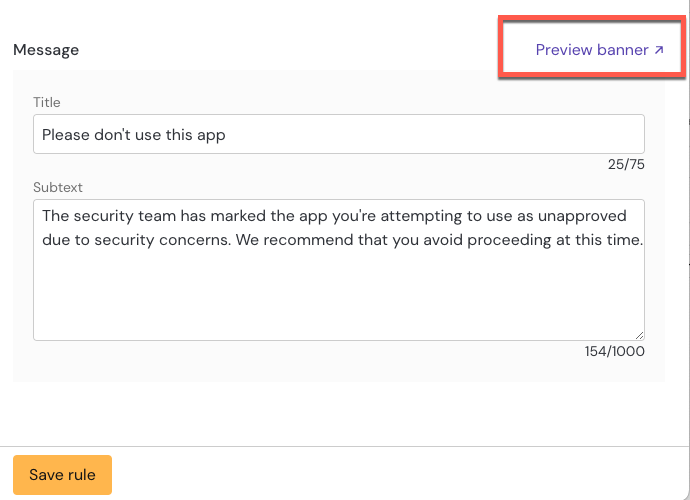
As an administrator, you can preview the banner in your browser before you save it. Select Preview banner from the banner configuration slideout panel.
Managing banners
You can identify which apps have app banners under certain conditions by opening the App banners tile on the Controls page and reviewing the list.
Webhooks for app banners are also available, with an event for when a banner is displayed, acknowledged, when a reason is submitted, or when a block is performed. Refer to our developer documentation for details.
Templates and examples
Here are a few examples of how you can use app banners.
This app is not approved for use at CtrlAltSecure App A is not approved for company use. If you need a file storage tool, use App B instead. Contact steph@ctrlaltsecure.com to request access.
Do not enter company data into this app It’s fine to use this AI tool for simple brainstorming tasks, but do not enter any company data, such as customer lists, intellectual property, or project information. Please acknowledge your compliance with this policy.
This app is under review — ask before you use it The Acme security team is reviewing this app to decide if it’s suitable for company use. If you need to use it in the meantime, please provide a reason first.
This app is not approved for company use Acme security policy prevents use of this app. If you have a business reason to use it, please provide an explanation using the box below.